
In busy teams, meetings move fast. Decisions are made, actions are agreed and context is shared verbally. If those details aren’t captured properly, they’re easy to lose. And that makes meetings a waste of time.
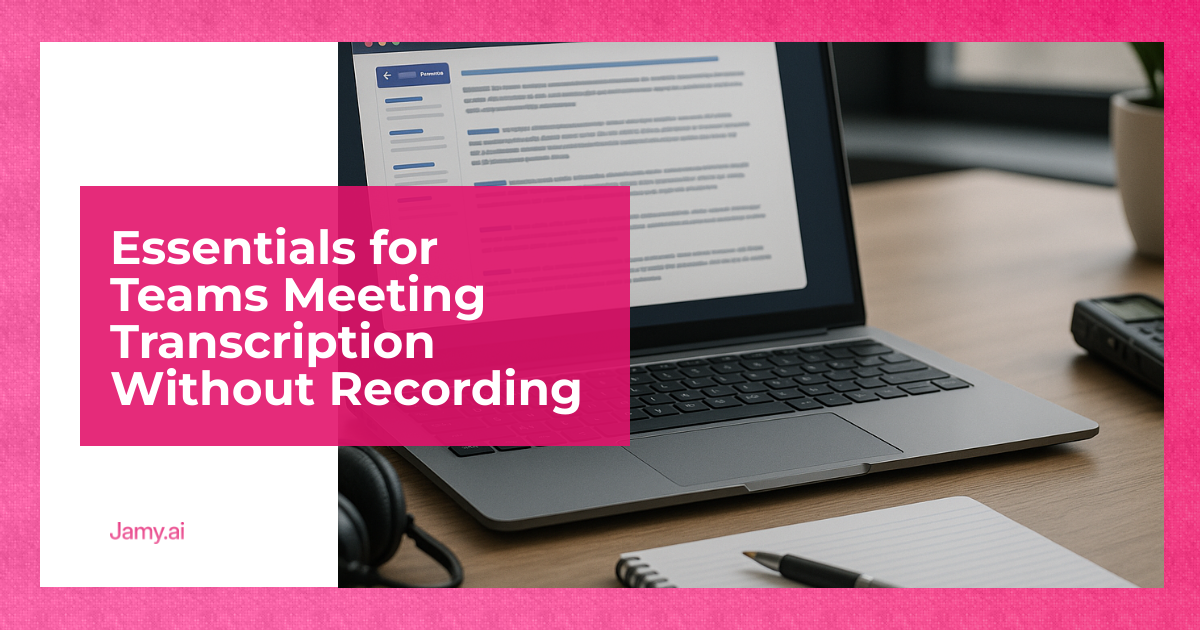
Many teams look for Teams meeting transcription without recording as a way to improve documentation while avoiding stored audio or video. Whether for privacy, compliance or simplicity, the goal is the same: keep accurate notes without adding unnecessary steps. Enabling transcription may require the correct permissions set in the Teams admin centre.
Transcribing meetings without recording also helps organisations avoid storage constraints and save storage space, since text transcripts are much smaller than large video files.
In this guide, we’ll cover:
- How transcription works in Microsoft Teams
- What’s possible without recording, and where the limits are
- Practical ways to improve accuracy and documentation quality
- How AI tools can reduce manual note-taking altogether
We’ll also explore how different meeting transcription services may suit your needs.
Introduction to Microsoft Teams Meetings
Microsoft Teams meetings have quickly become a cornerstone of remote work and collaboration for businesses of all sizes. As virtual meetings replace many in-person discussions, the ability to capture and reference what was said has never been more important. For meeting participants and organisers, ensuring that crucial details aren’t lost in the flow of conversation is essential for effective teamwork and follow-up. Microsoft Teams offers built-in meeting transcription features that allow teams to document discussions without the need for recording, making it easier to focus on the meeting itself rather than on taking notes. This approach is especially valuable for those who want to keep meetings efficient and compliant, without the burden of storing large audio or video files. By leveraging transcription in Teams meetings, businesses can ensure that every important point is captured, even in meetings without recording.
Benefits of Transcription in Microsoft Teams
Transcription in Microsoft Teams brings numerous benefits to both meeting participants and organisers. With transcription enabled, everyone can fully participate in the meeting, knowing that key points and important details are being captured automatically. This creates a distraction-free environment, allowing attendees to focus on the discussion rather than scrambling to jot down notes. Transcription also helps minimise the impact of technical glitches or background noise, ensuring that nothing critical is missed. Having a written record of the meeting supports better decision-making, as it’s easier to review what was discussed and follow up on action items. Ultimately, transcription in Teams meetings streamlines communication, reduces misunderstandings and helps teams stay aligned on next steps.
For more information, read our article on Zoom vs Teams.
Understanding Microsoft Teams Transcription
Microsoft Teams includes a built-in live transcription feature, also known as the transcription feature, which converts spoken conversation into text in real time during a meeting. This real-time transcription capability allows users to follow conversations, improve accessibility and document meetings without recording the entire session.
This can be useful for:
- Accessibility and inclusion
- Following conversations more easily
- Capturing a rough written record of what was said
You can start the real-time transcription feature by selecting ‘Start Transcription’ from the ‘More Actions’ menu during a meeting. To set or change the transcription language, select More actions, hover over Record and transcribe and then choose Language settings.
However, Teams transcription comes with important limitations.
Live transcription accuracy can drop when:
- Multiple people speak at once
- Background noise is present
- Speakers have strong accents or different dialects
More importantly, Microsoft Teams only saves the meeting transcript when meeting recording is enabled. This is a requirement of the Microsoft Teams transcriptions process. If you run transcription without recording, the text disappears when the meeting ends. Transcription will also stop automatically when all participants leave the meeting. Only the meeting organiser or co-organisers can start and stop live transcription. Additionally, live transcription in Microsoft Teams is only available to users with an Office 365 subscription and is generally available for users with specific Microsoft 365 Business, Enterprise or Education plans.
That means Teams transcription is helpful in the moment, but unreliable for long-term documentation.
Can You Use Teams Transcription Without Recording?
You can start live transcription in a Teams meeting without recording, but you won’t get a saved transcript afterwards unless certain permissions are set by your IT admin in the Teams admin centre.
Here’s how it works:
- An IT admin must enable transcription in the Teams admin centre and set the appropriate permissions set for your organisation.
- During a live meeting, select ‘More actions’.
- Choose ‘Start transcription’.
To start transcription, users select ‘Record and transcribe’ and can also select the transcription language for accuracy.
Participants can see the text as the meeting happens. Once the meeting ends, if recording is enabled, Teams transcripts are available in the Recap tab and meeting chat, and can be downloaded as .docx or .vtt files. All transcripts created during a meeting are accessible in the Microsoft Teams portal after the meeting ends.
The meeting organiser, co-organisers and presenters can stop transcription or stop recording at any time during the meeting.
Note: If you don’t see the transcription option, your IT admin may need to enable it in the Teams admin centre.
For teams that need a permanent record, this is a key limitation.
How Live Transcription Works
Live transcription in Microsoft Teams uses advanced AI to automatically transcribe spoken words into text as the meeting unfolds. Meeting organisers can enable this feature directly from the meeting control toolbar, simply by selecting the spoken language and choosing to start transcription. As the conversation progresses, the transcription process captures key information and important points in real time, making it easy for meeting participants to follow along. This seamless approach means that everyone can stay engaged in the meeting, with the confidence that the main ideas and decisions are being documented. While the live transcription is visible during the meeting, it’s important to note that, unless the meeting is recorded, the transcript will not be saved for later review. This makes live transcription a powerful tool for in-the-moment clarity and collaboration in Teams meetings.
For more information, read our article on mistakes to avoid when transcribing audio and video content.
Enabling Live Captioning
Turning on live captioning in Microsoft Teams is a simple process that enhances accessibility and understanding for all meeting participants. Meeting organisers can access the meeting control toolbar and click on the ‘More actions’ menu, represented by three dots. From there, they can select the spoken language and start transcription, which enables live captions to appear on screen in real time. This feature ensures that everyone in the meeting can follow the conversation, regardless of their hearing ability or language proficiency. By making live captioning easily accessible, Microsoft Teams empowers teams to communicate more effectively and inclusively during every meeting.
Effective Communication with Live Captions
Live captions are a powerful asset for effective communication in Microsoft Teams meetings. By providing a real-time, written record of spoken words, live captions help ensure that all meeting participants can engage fully, regardless of language barriers or hearing challenges. This feature reduces the risk of miscommunication and helps everyone stay on the same page, especially when discussing key points and important details. Meeting organisers can use live captions to create accurate meeting summaries and action items, making it easier to track follow-ups and ensure accountability. With virtual meetings, live captions support clear, inclusive and productive discussions, helping teams make better decisions and move forward with confidence.
Transcription Quality: Common Challenges
Audio quality and minimising noise are essential for accurate transcription, as poor sound can lead to errors in the transcript. Audio message transcription errors are common when recordings contain background noise, low volume, overlapping speech, or unclear pronunciation.
Common issues include:
- Misheard names or technical terms
- Incorrect speaker attribution
- Missing context around decisions
- Long transcripts with no structure
- Poor audio quality and background noise can reduce transcription accuracy
This creates a familiar problem: you technically have notes, but they’re hard to use. Using a good microphone and encouraging participants to speak clearly and at a steady pace can improve transcription quality. Also, confirming the spoken language setting in Teams matches the language spoken in the meeting helps ensure transcription accuracy.
Teams often end up:
- Re-reading transcripts to work out what actually matters
- Writing summaries manually anyway
- Repeating discussions in follow-up meetings
That defeats the purpose of transcription in the first place.
Best Practices for Better Meeting Transcription
If you’re relying on transcription during Teams meetings, a few habits make a big difference.
Before the meeting:
- Share the agenda and attendee list
- Clarify the purpose and expected outcomes
Sharing the agenda and participant roles ahead of time helps identify speakers and improve transcription accuracy.
During the meeting:
- Encourage clear, paced speech
- Avoid talking over each other
- Ask speakers to state decisions explicitly
- Mute when not speaking
Using visual aids during meetings can enhance understanding and improve transcription accuracy.
After the meeting:
- Summarise key decisions and actions
- Confirm ownership and deadlines
- Share a short written recap
Reviewing the meeting transcript helps clarify information and correct misunderstandings. Transcribing meetings helps ensure that expectations are understood and key points can be referred back to later.
Even with transcription, human clarity still matters. Using transcripts makes it easier to track follow-up tasks and transcribe team meetings for future reference.
Where AI Changes the Equation
The real problem with Teams transcription isn’t starting it. It’s what happens afterwards.
AI meeting assistants remove the need to choose between:
- Live transcription with no record
- Recording meetings just to get notes
Instead of raw transcripts, AI tools focus on outcomes.
For example, Jamy automatically:
- Captures meetings without manual note-taking
- Produces structured summaries instead of long transcripts
- Highlights decisions, action items and next steps
Other AI-powered meeting assistants, such as Notta and Krisp, offer similar benefits. Notta uses an AI assistant to automatically transcribe meetings, allowing users to edit, download, and share transcripts easily. Krisp uses an AI meeting assistant to seamlessly transcribe Teams meetings without requiring recording. These AI-powered tools help automate tasks like transcription and summarisation, improving remote collaboration and ensuring key discussion points are captured for better team organisation.
Third-party transcription software and tools can be especially useful for users who don’t have a Microsoft 365 subscription, and often provide additional features such as editing and summarisation that may not be available in Microsoft Teams.
This means teams get useful documentation without:
- Typing during meetings
- Rewriting transcripts later
- Recording calls purely for admin reasons
The result is clearer follow-up and fewer ‘just to clarify’ meetings.
Accessing and Using Meeting Transcripts Effectively
When teams do have transcripts or summaries, the value comes from how they’re used. Meeting transcripts serve as official records of decisions, actions, and discussions, helping to keep everyone aligned. Microsoft Teams transcriptions also improve accessibility for individuals with hearing impairments or language barriers. Teams transcripts allow colleagues who missed the meeting to stay informed about what was discussed. Using transcriptions can save time by allowing users to quickly find important discussions and decisions without reviewing lengthy recordings.
Good meeting documentation helps teams:
- Confirm decisions
- Track action items
- Share context with people who couldn’t attend
- Reduce repeated discussions
The key is structure. A useful record answers three questions:
- What was decided?
- Who owns what?
- What happens next?
Anything else is noise.
Key Takeaways
- Microsoft Teams allows live transcription without recording, but it doesn’t save the transcript
- Automated transcription alone often lacks accuracy and structure
- Clear speaking and good meeting habits improve results, but still require manual effort
- AI meeting tools remove the need for manual note-taking and post-meeting cleanup
A Better Way to Capture Meetings
Teams don’t need more transcripts. They need clarity.
When discussions are captured accurately, structured clearly and shared automatically, teams spend less time chasing context and more time moving work forward.
Jamy helps teams do exactly that. By turning meetings into clear summaries with decisions and actions already mapped out, Jamy removes the admin burden without changing how teams run their calls.
That’s how meetings stop being something you survive and start becoming something that actually drives progress. Download and use Jamy for free today.
FAQ: Teams Meeting Transcription Without Recording
Can Microsoft Teams save transcripts without recording?
No. Transcripts are only saved when meeting recording is enabled.
Is live transcription accurate enough for meeting notes?
It can help in the moment, but accuracy and structure are inconsistent.
Why do teams avoid recording meetings?
Common reasons include privacy concerns, compliance rules and storage limits.
What’s the alternative to manual note-taking?
AI meeting assistants capture conversations and produce structured summaries automatically.
Do AI tools replace human judgment?
No. They handle documentation so people can focus on discussion and decisions.