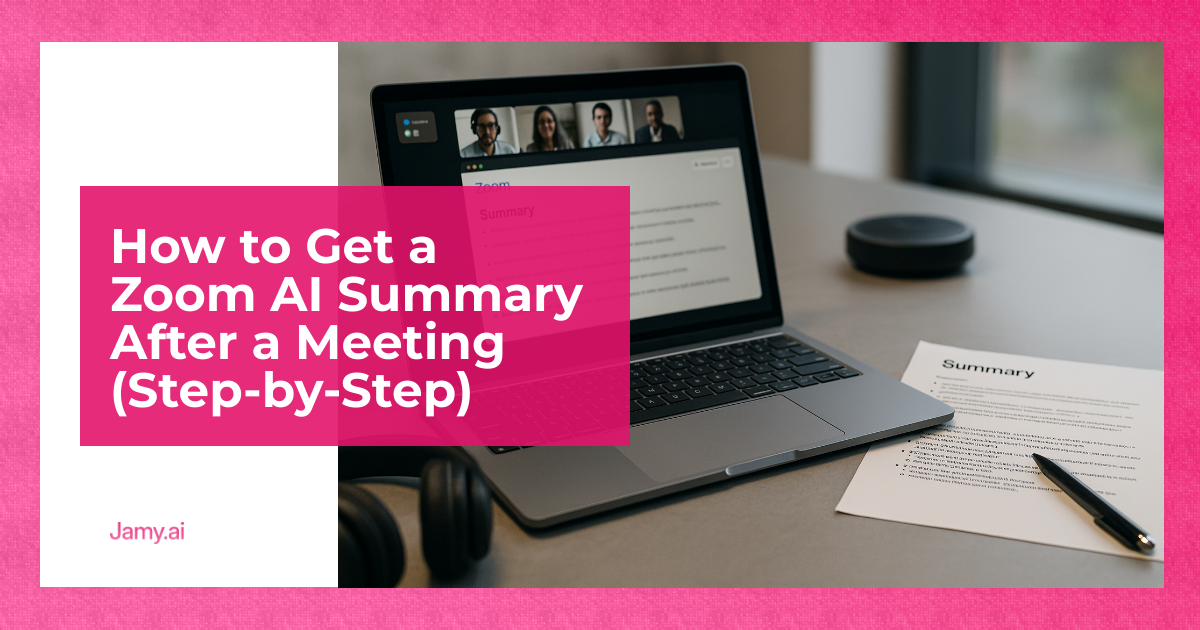

If you’ve ever finished a Zoom call and realised the real work is the write-up, you’re not alone. Notes get missed, actions get forgotten and the follow-up email slips a day. The good news is you can get a decent meeting recap without rewatching the recording. This guide shows how to get zoom ai summary after meeting in a way that’s repeatable, reviewable and safe to share.
We’ll keep this operator-focused: what to switch on, where the summary ends up, how to sanity-check it and how to turn it into actions that actually get done.
In this article, we’re going to discuss how to:
- Set Up Zoom So Meeting Summaries Are Actually Generated
- Find, Review And Share Your Zoom AI Summary After The Call
- Turn The Summary Into Follow-Ups, Tasks And Clean CRM Notes
Before You Start: What Zoom ‘AI Summary’ Means
Zoom’s built-in summary feature is part of AI Companion, Zoom’s set of AI features that can create a meeting summary from the meeting transcript. Availability depends on your account and plan, and your admin may need to enable it first. Zoom’s own documentation is the best place to confirm what your account supports: Zoom AI Companion overview.
Two practical points that matter in real operations:
- Quality depends on audio and participation. If people talk over each other, or the mic is poor, the transcript suffers and the summary follows.
- You still own the output. Treat the summary as a draft. Review it before you paste it into an email, a client update or a CRM.
Step 1: Check You’re Eligible For Zoom Meeting Summary
Most ‘it didn’t work’ issues come down to eligibility or settings. Run this quick check:
- Account level: Is AI Companion available on your Zoom account and turned on by an admin? See: manage AI Companion settings.
- User level: Do you personally have AI Companion enabled (where the admin allows user controls)?
- Meeting type: Are you using a standard Zoom Meeting where transcription and AI Companion are supported? Some org policies restrict this.
- Language: Is your meeting language supported for transcription and summarisation? Zoom lists supported languages in its docs, which change over time.
If you’re not the admin, send them a one-paragraph request: ‘Please enable AI Companion meeting summaries for my user or the team, with transcript saved to the host only, so we can produce consistent call notes and actions.’ Keep it simple.
Step 2: Turn On Meeting Summary In Zoom (Admin And Host Settings)
There are usually two layers: the admin enables the feature for the account or group, then the host uses it in meetings. Zoom’s settings screens change, so use the docs above as your source of truth.
As a host, you’re typically looking for settings related to:
- AI Companion features being enabled for meetings
- Meeting transcription (the summary is built from the transcript)
- Storage and sharing controls for summaries and transcripts
Operator tip: if you manage a team, standardise this. Document which meetings must have summaries on (sales calls, discovery, interviews, incident reviews) and which must not (sensitive topics, internal HR matters). Consistency beats good intentions.
Step 3: Generate The Summary During The Meeting
To get a Zoom AI summary after a meeting, you generally need to start the feature while the meeting is running. The exact button name varies, but it’s commonly under AI Companion controls in the meeting toolbar. Zoom explains the in-meeting flow here: use Meeting Summary.
Use this practical in-call checklist:
- At the start: tell attendees you’ll be using automated summarisation and confirm they’re comfortable.
- Keep speaker names accurate: ask people to join with real names, not ‘iPhone’.
- Reduce crosstalk: enforce one-at-a-time for key decisions and actions.
- Call out actions clearly: say ‘Action: Alex to send the revised quote by Thursday 17:00’.
If you work across languages or time zones, it’s worth deciding upfront what ‘done’ looks like for the recap: decisions, actions (with owners and dates) and open questions. Anything else is noise.
Step 4: Find Your Zoom AI Summary After The Meeting Ends
After the meeting, Zoom typically makes the summary available to the host and any users you’ve permitted. Depending on your setup, you may see it in the Zoom web portal, in your meeting history, or as a notification or email.
Look for these common places:
- Zoom web portal: a ‘Meeting Summary’ item linked to the meeting in your history
- Email notification: if enabled, Zoom may send a message indicating the summary is ready
- In-app notifications: Zoom desktop app notifications can point you to the summary
If you can’t find it, work backwards:
- Was the summary started during the meeting?
- Was transcription allowed and running?
- Did the meeting end normally (not crashed), and is the summary still processing?
- Are you signed into the same Zoom account that hosted the call?
Step 5: Review The Summary Like An Operator (Not A Tourist)
Meeting summaries are good at structure and speed, and weaker on nuance. Before sharing, do a 3-minute review pass:
- Decisions: are they correct and specific, or vague?
- Actions: do they have an owner and a deadline? Add them if missing.
- Numbers and dates: check these manually.
- Names and companies: fix spelling. This matters when you paste into a CRM.
Then rewrite the top of the summary into a one-paragraph ‘executive recap’ if it’s going to a client or a busy internal stakeholder. Your goal is clarity, not completeness.
Step 6: Share The Summary Without Creating More Work
Sharing is where good teams accidentally create mess. Two rules help:
- Send one clean follow-up. Don’t forward raw transcripts unless there’s a clear need.
- Publish actions in the system of record. If your team runs on a task tool or CRM, put actions there, not buried in an email thread.
Here’s a lightweight follow-up template you can paste into email or Slack:
Subject: Recap and next steps
Recap (2–3 lines): [What we agreed and why]
Decisions:
1) [Decision]Actions:
1) [Owner] to [Action] by [Date]
2) [Owner] to [Action] by [Date]Open questions:
1) [Question] (owner: [Name])How To Get Zoom AI Summary After Meeting Into Your Workflow
The summary itself is only useful if it reduces rework. The best pattern is: summary, review, then downstream updates. If your team is already fighting documentation debt, consider standardising the downstream steps with an AI meeting notes workflow that turns calls into consistent notes, action lists and updates you can paste into your tools.
Try this simple operating rhythm:
- Within 30 minutes: host reviews the summary and confirms decisions and actions.
- Within 2 hours: send follow-up with actions and dates.
- Same day: update CRM fields and next steps, or log the interview scorecard, or write the customer research insight.
If you need multilingual write-ups for global teams, you’ll want a consistent approach to translation and terminology. A structured system such as multilingual meeting summaries can help reduce misreads, but keep a human review step for anything customer-facing.
Recording, Consent And Data Handling (General Info Only)
Even if you’re not saving a video recording, summarisation is still processing people’s spoken data. In many organisations you’ll need clear notice and, depending on jurisdiction and policy, consent. For UK data protection basics, refer to the ICO’s guidance on lawful processing and transparency: UK GDPR guidance.
Information only: This section is general operational guidance, not legal advice. If you operate in regulated environments, follow your internal policy and get proper counsel.
Common Problems And Fast Fixes
When teams search for ‘why didn’t I get a summary’, it’s usually one of these:
- AI Companion not enabled: ask your admin to confirm account and group settings.
- Summary not started: the host must usually start it during the meeting.
- Transcription blocked: company policy may disable it, or the meeting setting is off.
- Audio quality poor: use headsets for key calls, and avoid meeting rooms with echo.
Conclusion
Once it’s set up, getting a Zoom AI summary after a meeting is a straightforward habit: start it, review it, then turn it into decisions and actions with owners and dates. The value isn’t the summary itself, it’s the consistency and speed of follow-up. Put a simple review step in place and you’ll avoid the usual errors that waste time later.
Key Takeaways
- Zoom’s AI meeting summary depends on AI Companion, transcription and the right account settings.
- Start the summary during the meeting, then do a short review for decisions, actions, names, numbers and dates.
- Convert the recap into follow-ups and system updates quickly, or it turns into another forgotten document.
FAQs About Zoom AI Meeting Summaries
Do I need to record the meeting to get a Zoom AI summary?
Not always, but you typically need transcription enabled because the summary is generated from the transcript. Your admin settings determine what’s required and what’s stored.
Who can see the AI summary after the meeting?
That depends on your Zoom admin and meeting settings, including who the host shares it with. Treat it like any internal document and apply the same access rules.
Why is my Zoom AI summary missing or blank?
Usually it’s because the feature wasn’t started during the meeting, transcription was disabled, or the meeting audio was too messy for a reliable transcript. Check settings first, then rerun with a clear speaking order.
Can I use the summary for customer follow-ups and CRM notes?
Yes, but review it before sharing and make sure actions have owners and deadlines. For repeatable notes and cleaner handoffs, consider standardising your process with Jamy’s automated action items and summary templates.
Next Step: Make Meeting Summaries Operational
If your goal is fewer dropped balls, focus on what happens after the recap. Jamy can help you turn calls into consistent notes, actions and updates with human checks where they matter. Explore meeting notes that are ready to share, set up structured follow-ups and task lists, or see how call summaries for distributed teams fit into your existing tools.