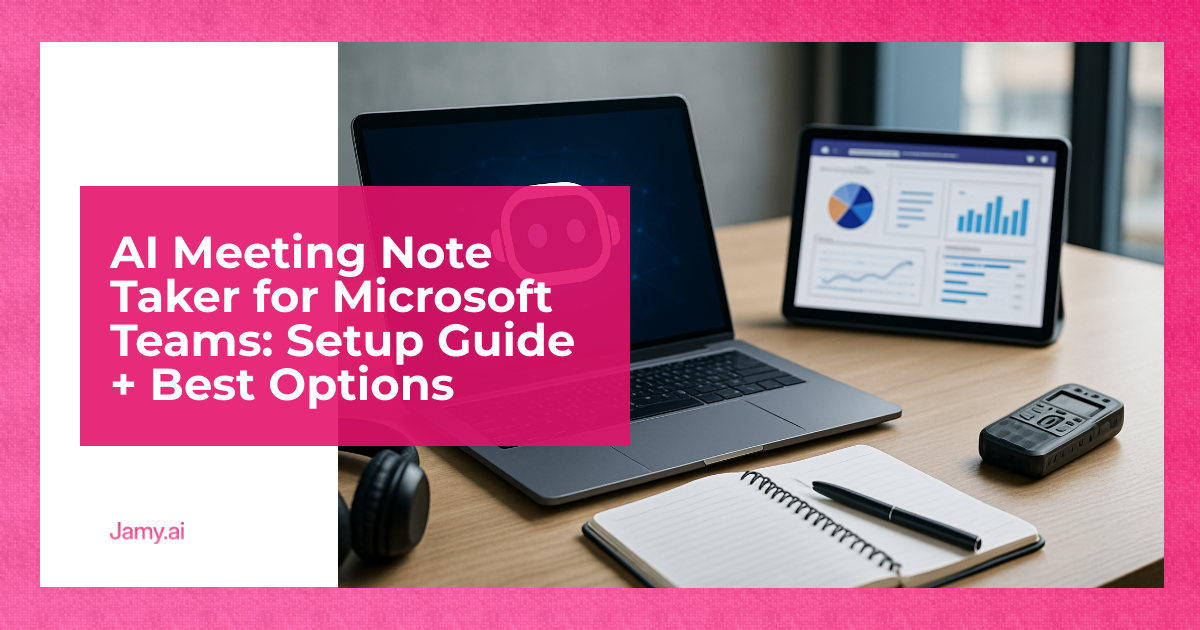

If you run a lot of calls in Microsoft Teams, the real cost is rarely the meeting time. It’s the follow-up drift: missed decisions, vague actions, and the Friday scramble to remember what was agreed. An ai meeting note taker for teams can fix that, but only if you set it up properly and treat the output as working notes, not gospel. This guide covers a setup that stands up in real ops, plus a criteria-based view of the main options.
Expect trade-offs. Better notes usually mean more capture, more processing, and more risk if you ignore permissions and consent. The goal is not ‘perfect transcripts’, it’s fewer dropped balls and cleaner handovers.
In this article, we’re going to discuss how to:
- Set up Microsoft Teams so your notes are consistent and usable
- Turn meeting output into actions, owners and dates without extra admin
- Compare the best options for an AI note taker in Teams using operator criteria
What An AI Meeting Note Taker For Teams Should Deliver
For operators, notes are only useful if they create accountability. A good ai meeting note taker for teams should do four things reliably:
- Capture: audio is clear, speaker turns are usable, and late joiners don’t break the record.
- Structure: summaries are grouped by topic, decisions are explicit, actions are separate from discussion.
- Traceability: you can point back to the moment a decision was made, even if you share only the summary.
- Distribution: the right people get the right output, and it lands where work happens, like CRM, ticketing or project tools.
Be sceptical of any system that only promises ‘great summaries’. Your main failure mode is not missing text, it’s unclear ownership.
Microsoft Teams Setup Guide: Get Clean Inputs First
AI notes do not fix poor meeting hygiene. Start by making Teams calls predictable, so any tool can perform well.
Step 1: Confirm Recording, Transcription And Policy
In Teams, recording and transcription depend on tenant settings and meeting policies. Check what’s allowed for your organisation and which users can start recording or transcription. If you’re unsure, ask your Microsoft 365 admin to confirm the policy rather than guessing.
Consent and compliance note: recording and transcription rules vary by country, industry and company policy. This article is information only, get internal guidance before rolling changes into customer calls.
Step 2: Use A Repeatable Meeting Template
Small changes in meeting structure improve note quality more than most model settings. Standardise:
- Agenda in the invite: 3 to 5 bullets max, ordered by decision priority.
- Roles: name a facilitator and a decision owner, even if you still use AI notes.
- Decision points: add ‘Decision needed’ next to any item that must end with a yes or no.
If you want a lightweight system, use a single ‘outcome format’ across teams: Context, Decision, Actions, Risks. Most summary tools can be nudged towards this structure, but you need the habit first.
Step 3: Fix Audio, Because It Drives Everything
Transcription quality follows audio quality. Before you blame the tool, do this:
- Ask everyone to use a headset on important calls, especially in open-plan offices.
- Mute by default for large meetings, and use ‘raise hand’ to reduce crosstalk.
- Encourage people to say names when assigning work, for example ‘Sam owns the draft by Tuesday’.
These are boring rules, but they’re the difference between a usable action list and a vague paragraph.
Step 4: Decide Where Notes Should Live
Pick the system of record per meeting type, then automate towards it:
- Sales and success: CRM activity and next steps.
- Delivery: project board and client status doc.
- Hiring: interview scorecard and debrief channel.
This is where a dedicated workflow helps. If you’re building a repeatable AI meeting notes workflow, define the target destination first, then choose the tool that can push structured output there.
Operating Checklist: Turning Notes Into Actions That Stick
Even the best tool will produce ‘action items’ that are not actually actions. Use this checklist after any decision-heavy meeting:
- Decisions: rewrite each decision as a one-line statement, plus the reason if it affects other teams.
- Actions: each action must have an owner, a due date and an acceptance check, for example ‘Draft spec shared in channel’.
- Dependencies: call out any external blocker explicitly, such as ‘waiting on legal review’.
- Follow-up: schedule the next touchpoint only if there is an open decision or risk. Otherwise, use async updates.
If you want fewer meetings, make ‘actions due’ the default agenda item for the next call. That forces continuity and exposes where work stalled.
Many teams also benefit from auto-generated tasks, but only with review. A system that creates automated action items should still allow a human to confirm owners and dates before it hits your CRM or project board.
Best Options For AI Meeting Notes In Microsoft Teams
Below is a practical comparison. It’s not about who has the flashiest model. It’s about where the notes go, how easy it is to run, and how safe it is to deploy at scale.
| Option | Best For | Key Features | Benefits | Indicative Pricing Model |
|---|---|---|---|---|
| Teams recording and transcription (native) | Teams-first orgs that mainly need searchable records | Meeting recording, transcript availability (depends on policy), basic capture | Lowest operational friction, stays inside Microsoft environment | Included with eligible Microsoft 365 plans, varies by licence and policy (Source: Microsoft Teams documentation) |
| Microsoft Copilot for Microsoft 365 | Microsoft-heavy stacks wanting summarisation across apps | Meeting recap, summary support, integration across Microsoft 365 apps | Convenient for users living in Outlook, Teams and documents | Paid add-on per user, varies by plan and region (Source: Microsoft Copilot pricing pages) |
| Jamy.ai | Operators who want structured notes, actions and repeatable follow-ups | Meeting summaries, action tracking, multilingual support options, exportable outputs | Better handovers, less admin, clearer accountability in post-call workflows | SaaS subscription, check current plan details on Jamy.ai (Source: Jamy.ai product pages) |
| Otter (or similar note apps) | Individuals and small teams prioritising personal note capture | Transcript, summaries, highlights, sharing controls | Quick to trial, useful for personal recall and simple sharing | Freemium to paid tiers per user, varies (Source: vendor pricing pages) |
| Fireflies (or similar meeting bots) | Teams that want cross-platform meeting capture | Bot join, transcript and summaries, integrations vary by plan | Works across multiple meeting platforms, useful in mixed client environments | Freemium to paid tiers per user, varies (Source: vendor pricing pages) |
How to read the table: if you only need a record, native Teams features may be enough. If you need a dependable system for decisions and follow-ups, prioritise structure, export, integrations and admin controls over ‘pretty summaries’.
Selection Criteria That Matter In The Real World
When you shortlist options, use criteria that map to pain you can measure:
- Accuracy under pressure: noisy rooms, mixed accents, fast back-and-forth. Test with a real meeting, not a demo.
- Action quality: can it separate ‘nice ideas’ from actual commitments, and can you edit quickly?
- Workflow fit: does it push outputs where work happens, or does it create yet another place to check?
- Access control: can you restrict who sees transcripts, especially for HR, customer calls and pricing discussions?
- Admin effort: onboarding, permissions, storage and offboarding should be straightforward.
If you don’t know what to pick, run a two-week pilot with one team and one meeting type. Track: time spent writing notes, follow-up completion rate, and how often decisions get revisited because ‘no one’s sure’.
Conclusion
A good AI note setup in Teams is mostly process: clear agendas, decent audio, and a fixed place for outputs. Tools help when they turn talk into decisions and actions, not when they generate longer text. Treat AI notes as a draft that speeds up admin, with human review where it affects customers, hiring or compliance.
Key Takeaways
- Start with Teams meeting hygiene, because audio and structure drive note quality
- Judge tools on action clarity, workflow fit and admin controls, not on summary style
- Run a short pilot and measure time saved and follow-up completion, then standardise
FAQs
Do I need to record the meeting to use an AI meeting note taker in Teams?
Not always, but most systems need some form of audio capture to generate a transcript and summary. Whether you can record or transcribe depends on your Microsoft 365 policies and local rules.
How accurate are AI meeting notes for fast sales calls?
They can be good enough for follow-ups if audio is clean and people avoid talking over each other. Always review anything that goes to a customer, especially pricing, dates and contractual statements.
What’s the simplest workflow to reduce follow-up drift?
Standardise outputs to Decisions, Actions, Risks, then post them to one shared place immediately after the call. Make every action include an owner and due date, or it will be ignored.
How should I introduce AI note taking to a team without pushback?
Frame it as admin reduction and clearer accountability, not surveillance. Start with internal meetings, publish the rules on what is captured and who can access it, then expand once trust is in place.
Try Jamy.ai In A Teams-First Workflow
If you want structured notes that translate into work, start by reviewing how Jamy.ai supports meeting notes and follow-ups. For teams working across regions, it’s also worth checking the multilingual meeting summaries approach. When you’re ready to operationalise it, use the CRM-ready meeting output pattern so actions land where your team already works.