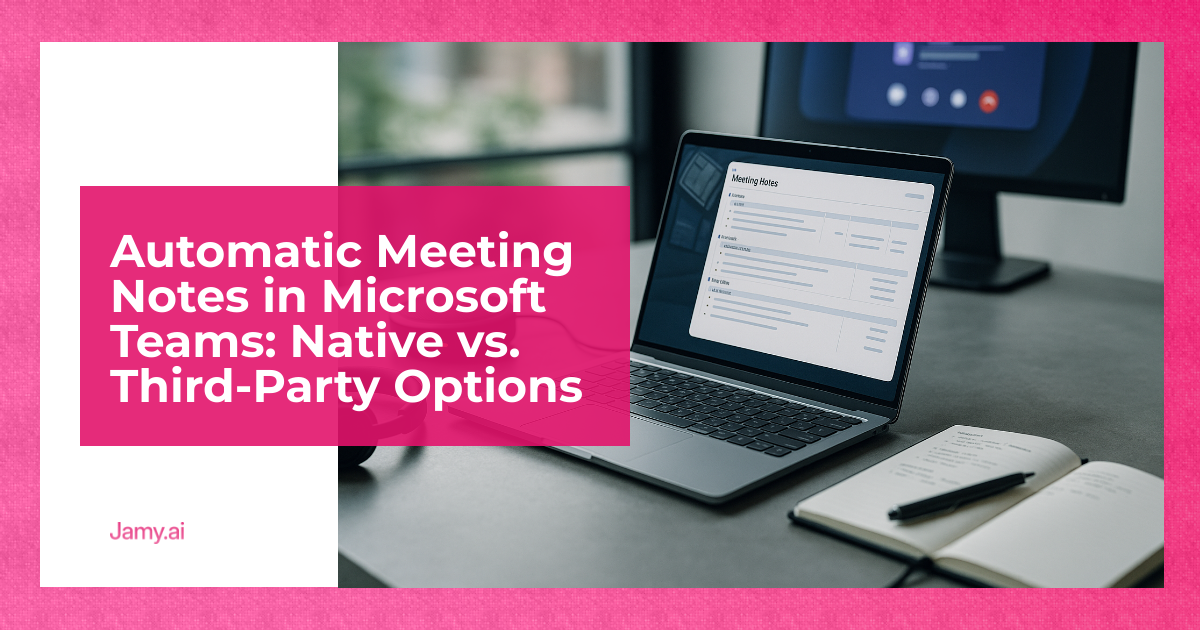

If you run most of your business inside Teams, meeting notes can feel like an admin tax you can’t afford. People forget decisions, actions land in the wrong place, and the CRM quietly rots. The fix isn’t ‘more discipline’, it’s a system that captures what happened and makes follow-up hard to ignore. The real question is what you can trust: Microsoft’s native stack, or a third-party tool. This guide compares both so you can pick the least painful option for your workflow.
In this article, we’re going to discuss how to:
- Understand what Teams can do natively for notes, transcripts and recaps
- Compare third-party options against operator-grade criteria like auditability, rollout effort and cost
- Choose a setup that produces consistent actions, owners and deadlines without creating more tool sprawl
What ‘Automatic Meeting Notes’ Means In Teams (And What It Doesn’t)
When people say ‘automatic meeting notes in Teams’, they usually mean one of three things:
- Transcript: a word-for-word text record of what was said.
- Recap: a structured summary of the meeting, often with chapters, speakers and key moments.
- Action items: decisions and tasks with an owner and due date that end up somewhere useful.
Teams can help with transcripts and recaps depending on your licensing and policies, but ‘notes’ that reliably turn into accountable actions often need extra workflow: templates, review steps, and somewhere to send the output.
One more reality check: if the meeting isn’t recorded or transcribed, any ‘automatic notes’ feature is operating with limited input. Your first decision is whether you’re comfortable with recording and transcription in the first place.
Native Options For Automatic Meeting Notes In Teams
Microsoft has been steadily improving what you get inside Teams. The native route works best when you want fewer vendors, tighter Microsoft 365 governance, and you’re willing to stay within Microsoft’s feature set.
1) Meeting Transcription (Baseline Capture)
Teams supports live transcription where enabled by your organisation. This is your minimum viable capture layer: you can search it later, quote it, and use it as evidence when there’s a disagreement about what was said. Microsoft’s documentation covers when transcription is available and how it’s stored and accessed: Microsoft Support: record and transcription in Teams.
Operator view: transcripts are useful, but they’re not a plan. Someone still has to turn the transcript into actions, update the CRM, and send follow-ups.
2) Intelligent Recap (Teams Premium)
Teams Premium adds ‘intelligent recap’ features, such as more structured review of the meeting (availability depends on tenant settings and which features are enabled). For teams that already pay for Premium, this can reduce note-taking for internal meetings where the recap is ‘good enough’ and the cost of a missed detail is low. See Microsoft’s product information for what’s included: Microsoft Teams Premium.
Operator view: recaps can save time, but they don’t automatically fit your operating cadence. You still need consistent formatting, clear owners, and a predictable place where actions land.
3) Copilot In Teams (If You’re In The Microsoft AI Stack)
If you’re licensed for Microsoft Copilot and your data governance is set up correctly, Copilot can help summarise and answer questions about meetings and chats inside Microsoft 365. Details and requirements change, so treat this as a capability you validate in your tenant, not a promise. Microsoft’s overview is here: Microsoft Learn: Microsoft 365 Copilot overview.
Operator view: Copilot is most useful when you already live inside Microsoft 365 and you want one security boundary. It’s less useful when you need notes that follow a strict template across sales, delivery, hiring and research, and that reliably generate tasks.
Where Native Teams Notes Usually Fall Short For Operators
For day-to-day operating, the gaps tend to be boring and expensive:
- Consistency: different meeting types need different outputs. A hiring interview needs a scorecard. A sales call needs MEDDICC-style fields. A delivery call needs risks, blockers and next milestones.
- Follow-up: summaries that don’t convert into next steps create a false sense of progress.
- Audit trail: you need to know what was generated automatically, what was edited by a human, and when.
- Distribution: operators want the same outputs posted to a channel, sent to attendees, and pushed into a CRM or ticketing system.
If you recognise those issues, it’s worth assessing a third-party option, or at least adding a repeatable workflow on top of Teams.
Third-Party Options: What To Look For Before You Add Another Tool
Third-party tools can produce better structured notes, more reliable action extraction and faster sharing, but only if you set rules up front. Here are criteria that actually matter in a business, not in a demo:
- Meeting type templates: can you define a ‘Sales discovery’, ‘Weekly delivery’, ‘Interview’ template and get consistent sections every time?
- Human review points: can a meeting owner approve edits before notes go to clients or candidates?
- Action item mechanics: are actions captured with an owner and due date, and can they be exported to your system of record?
- Data handling and admin controls: do you get central policies, retention options and a clear statement of where data is processed?
- Rollout effort: can you pilot in one team without breaking everyone else’s habits?
- Cost model: per user, per meeting, per minute, or usage based. Pick the one that matches your actual meeting volume.
If you want a practical place to start, you can standardise a simple AI meeting notes workflow that forces actions, owners and due dates, then measure whether follow-up quality improves.
Comparison Table: Native Teams Vs Third-Party Tools
Below is a criteria-based summary. Treat pricing as ‘published pricing models’ rather than an invoice quote, and always confirm current terms on the vendor site.
| Option | Best for | Strengths | Limits to watch | Pricing approach (published) |
|---|---|---|---|---|
| Microsoft Teams (transcription + recap) | Teams-first organisations that want minimal vendor sprawl | Native experience, fewer integrations to manage, works with Microsoft policies | Output can be less structured for specific workflows, action tracking still needs process | Included with Microsoft 365 plans for core Teams, advanced recap features via Teams Premium, see Teams Premium pricing page |
| Jamy.ai | Operators who want structured notes, multilingual support and consistent actions across functions | Template-driven outputs, action items you can standardise, useful when you need repeatability across sales, delivery and hiring | You still need governance: define templates, owners and what gets sent externally | See Jamy.ai plan options on the product page |
| Otter.ai | Teams that prioritise transcription and searchable meeting history | Strong transcript-first workflow, collaboration around notes | May require extra work to map outputs into your CRM or ticketing conventions | Subscription tiers, see Otter pricing |
| Fireflies.ai | Teams that want call capture plus integrations | Automated capture, integrations for sharing and storage | Quality depends on meeting context and configuration, outputs still need review for external sharing | Subscription tiers, see Fireflies pricing |
| Fathom | Teams that want quick summaries and shareable highlights | Fast recap workflow, sharing snippets and summaries | May not match stricter enterprise governance needs depending on use case | Subscription tiers, see Fathom pricing |
A Practical Decision Framework (Pick The Simplest Thing That Works)
Use this as a quick operator filter:
- Choose native Teams if your main issue is ‘we don’t have any record’, you have Microsoft governance in place, and you can tolerate summaries that vary by meeting.
- Choose a third-party tool if you need the same meeting output format every time, across teams, and you care about action conversion into systems of record.
- Choose a hybrid if you want Microsoft capture and storage, but need better structure and distribution for notes and actions.
If you operate across regions, look hard at language coverage. It’s not enough to ‘support transcription’, you need summaries that are readable and consistent across accents and mixed-language calls. A good test is whether the output can become a client update with minor edits. If that’s your situation, start with multilingual meeting summaries and define a review step before anything is sent externally.
Rollout Checklist: Make Automatic Notes Actually Save Time
Most failures come from skipping the boring setup. This checklist keeps you honest:
- Define 3 templates: one for revenue calls, one for delivery, one for hiring or research. Keep each to 6 to 10 sections max.
- Set the review rule: who approves notes before they are shared outside the company?
- Decide the system of record: CRM for sales, ticketing for delivery, ATS for hiring. Don’t rely on a notes doc as the final store.
- Action item standard: every action has an owner, a due date and a ‘definition of done’ line.
- Measure one thing: for 2 weeks, track % of meetings with actions completed on time. If it doesn’t move, your output format is wrong or no one owns follow-up.
Recording, Consent And Compliance (General Notes)
If you record or transcribe meetings, get the basics right: inform participants, document why you’re recording, and control access to the outputs. Requirements vary by jurisdiction and contract, so treat this as information only, not legal advice. For UK guidance on data protection principles, see the ICO’s overview: ICO: UK GDPR guidance.
Conclusion
Native Teams features can cover the ‘capture’ problem, especially if you’re already committed to Microsoft 365 governance. Third-party tools usually win when you need repeatable structure, reliable action extraction and outputs that map to your operating rhythm. Pick the simplest option that produces accountable follow-up, then enforce a review step so automation doesn’t create new mistakes.
Key Takeaways
- ‘Automatic meeting notes in Teams’ can mean transcripts, recaps, or action items, and each requires different controls
- Native Teams options reduce vendor sprawl, but consistent action conversion often needs templates and workflow
- Third-party tools are worth it when you need standardised outputs across sales, delivery, hiring and research
FAQs For Automatic Meeting Notes In Microsoft Teams
Does Teams generate automatic meeting notes by default?
No, not by default in a way most operators would call ‘notes’. Teams can provide recordings and transcription where enabled, and recap features depend on licensing and admin policies.
What’s the difference between a transcript and meeting notes?
A transcript is the raw text of what was said, which is useful for search and disputes. Meeting notes are a structured output with decisions, context and action items that drive follow-up.
When is a third-party tool worth it for Teams meetings?
When you need consistent templates, action items with owners and due dates, and distribution into a CRM, ATS or ticketing tool. It’s also helpful when you operate across languages and want readable summaries.
How do I reduce risk when using automatic notes on client or interview calls?
Use a clear consent process and keep access tight, then add a human approval step before sharing anything externally. Treat outputs as drafts, not truth, and correct errors while the meeting is still fresh.
Optional: A Utility-Led Next Step
If you want to standardise meeting output across Teams without adding more admin work, set up a pilot with one team and one template first. You can explore Jamy’s meeting notes for Teams, test automated action items, and decide whether a structured meeting recap you can audit improves follow-up quality in your systems of record.